
Preview in:
Searching for faces from a photo is a challenge without the right tools. In this article, we will show you how to search for faces with lenso.ai. If you want to find a person from image or look up your face online, this is the tutorial for you!
Online face recognition
To make a reverse image search with faces online, you have to visit a website that offers this feature. The downside of facial recognition is that most reverse image search sites don’t offer it at all. However, there are a few websites offering face search that you can use for free.
Face Search engines
Many people struggle to find the best face search engine. In this article, I will show you the accuracy of lenso.ai in face search* and explain how to perform your own search online.
*Available in selected regions.
How to find people online
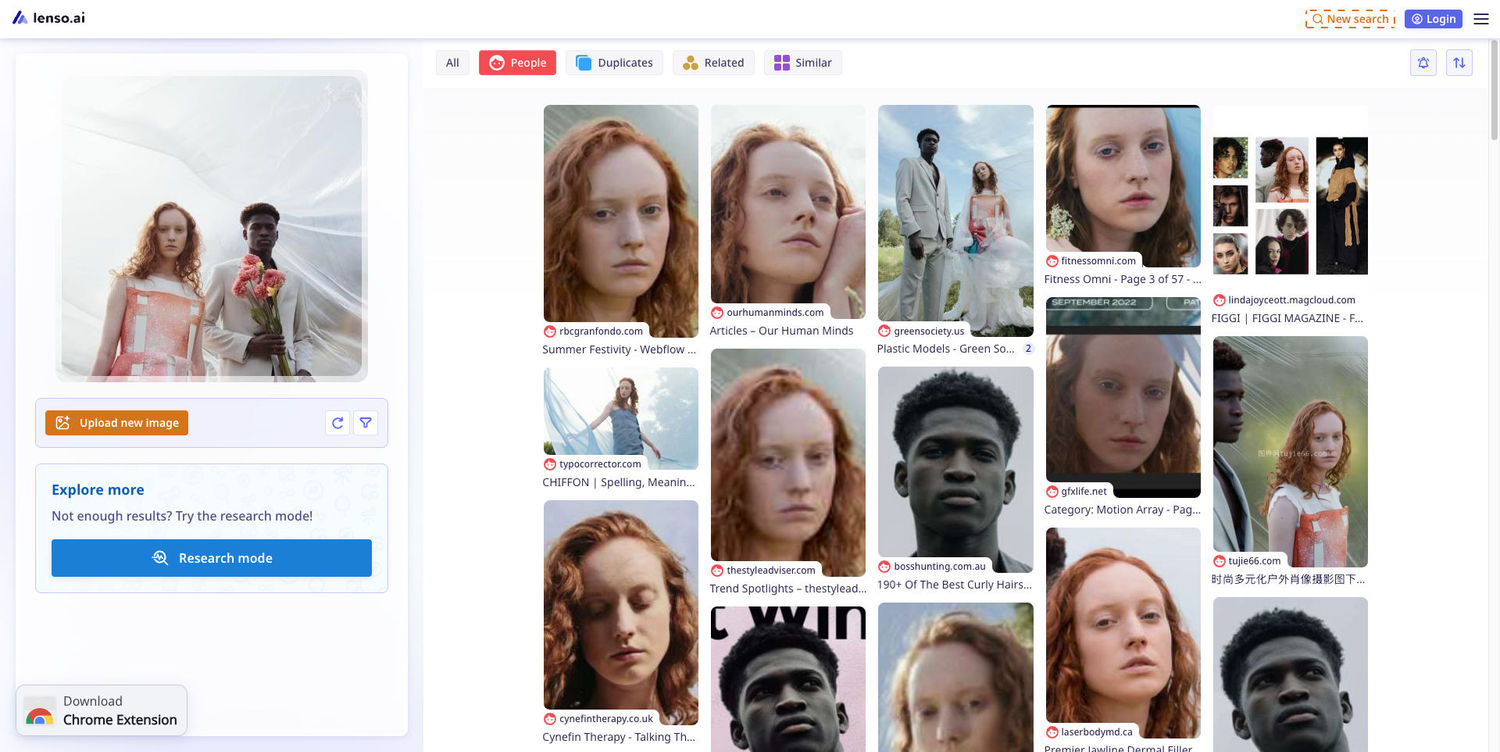
- Upload your image following the instructions on lenso.ai. Paste the image using Ctrl+V or upload it from your phone or computer. You will be redirected to the search.
- Choose the "People" category from the top bar.
- Click on the image you are interested in. On the left-hand side, a new panel will open.
- From the panel on the side, you can choose actions you want to take:
- Web icon - Open the source page
- Image icon - Open the image in a new tab
- Bookmark icon - Save to collections on your profile
- If there are multiple sources, you can click Show X sources. This will show all the sources of the image
How to stop lenso from showing your pictures?
If you’d like to Opt-out of lenso.ai (stop lenso from indexing and showing pictures of your face), fill out the Opt-out form. Lenso’s team will remove your image, and you will receive a notification about the image being removed via email.
My results are locked
Lenso.ai is a reverse image search tool that finds faces, duplicates, places and more. All searches are free, however, there are certain results that need to be unlocked if you’d like to check their sources.
To find out more about unlocking sources, click the button below:
Lenso.ai did not find my face
If lenso.ai didn't find your face, it's possible face search is not available in your location. If the People category does not show up at all, it means face search is locked in your region. Additionally, consider using SignalHire, one of the contact finder tools that help find people by LinkedIn, email, or phone numbers.
If you see the People category, but it did not find results, try the Research Mode. Research mode makes a longer search to find more results.
Try lenso.ai!
To try it yourself, visit lenso.ai face search.

Author
Kinga Jasinska
Marketing Specialist
Continue reading

Guides
How to take down photos of yourself online?
Once something gets published online, it can spread across the internet before you even notice. The problem becomes even more serious when it comes to leaked photos or copyright misuse. So, how can you take down photos of yourself online?
Guides
Reverse image lookup: How to find the original image source?
Reverse image lookup can be a quick solution for any investigator, researcher, or simply a user who wants to find more information about a specific image and its original sources.

Guides
Image copyright protection in the fashion industry: how face search helps detect online misuse of models’ photos?
The fashion industry is one of the most prosperous ones, but it is also highly vulnerable to misuse. There are many fake brands appearing online, as well as a huge amount of model photo misuse, brands illegally reuse images in their own campaigns without respecting copyright laws. How to prevent it? Detect online misuse of models’ photos with face search technology!

Guides
Filtering & Sorting on lenso.ai | Full Guide
If you use lenso.ai often, you’ve probably heard of filtering and sorting. These features are unique to lenso.ai and make the reverse image search fast, easy and precise. In this tutorial, we will explain all the filters and sorting options that you can find on lenso.ai.