
Preview in:
What is Research Mode on lenso.ai?
In the most basic terms, Research Mode is a feature available in the Professional subscription that allows users to get more results for their query image.
Additionally, Research Mode comes with Advanced Filters. With filters, you can filter by domain, size, language, and more! Keep reading to find out what filters were added.
How does Research Mode work?
Normally, lenso.ai shows 30, 50, or 100 results for People and Duplicates, depending on how many best matches it finds. Usually, it’s limited to 1000 results for every photo you search.
Research Mode takes longer to load, but it can find 10 times more results than the usual search!
Read more about the Research Mode on lenso.ai
The point is, in normal search, only the best and most certain results are shown. Research mode takes time to find results that are not as certain, but often just as accurate!
The difference between Research Mode and normal search
In a normal search, results are limited but the most accurate. This search is done fast and finds great results as is!
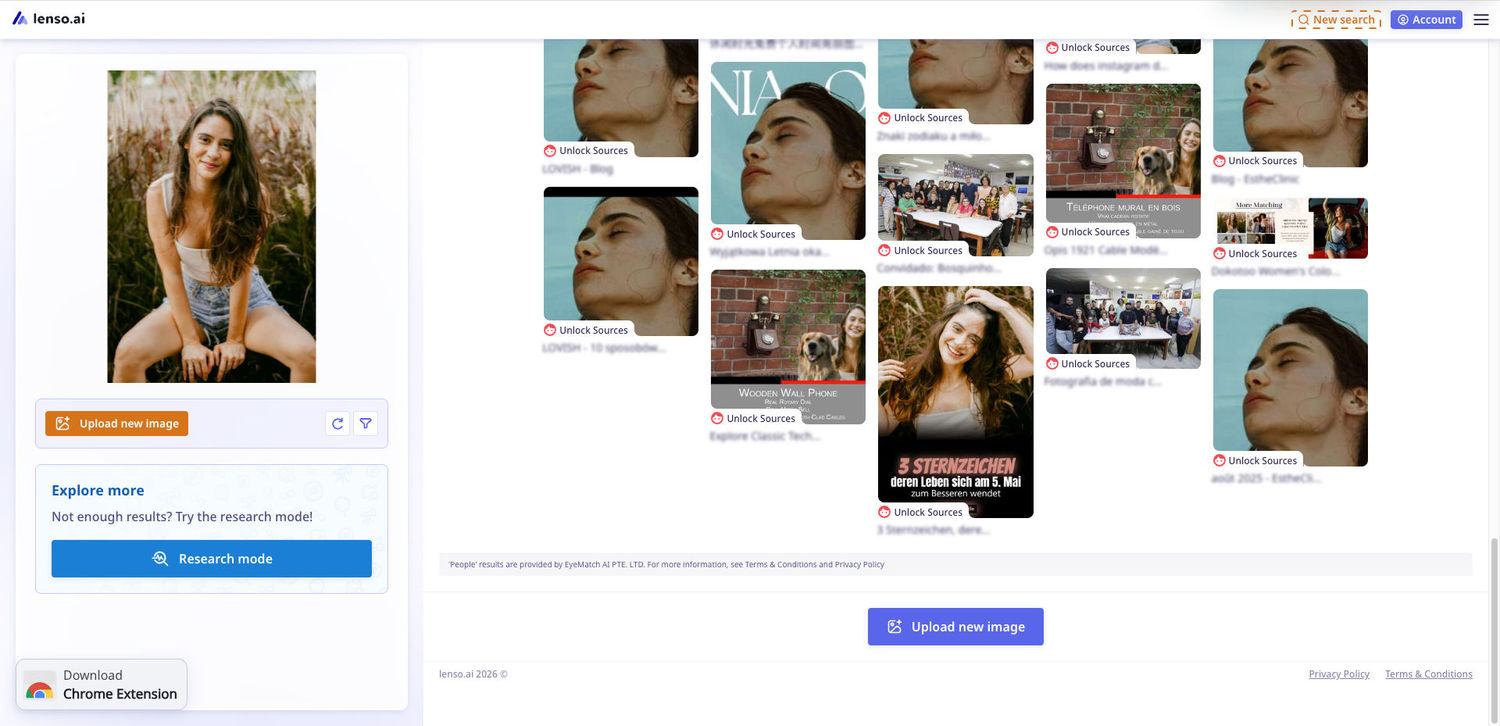
In the Research Mode, some results are less accurate - but there are always more of them, and there’s a good chance of finding something of value.
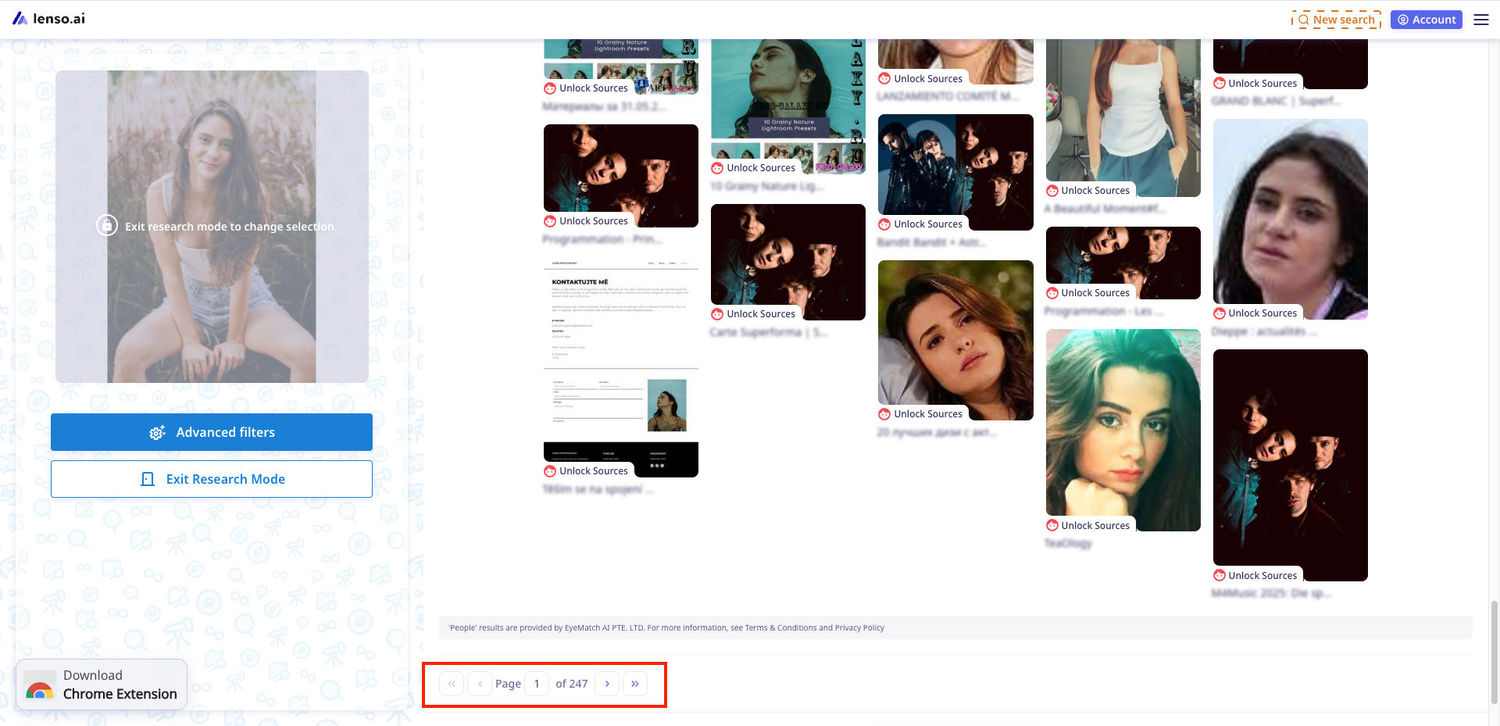
Advanced Filters in the Research Mode
With the newest update on lenso.ai, Research Mode was expanded. Advanced Filters were added, offering more options for clarifying the exact images the user is looking for.
What are Advanced Filters?
Advanced Filters are filters available only in the Research Mode. Those include:
- Language - Include or exclude languages to search for the website in a specific language.
- Domain - Include or exclude domains to search for photos posted on specific websites.
- Size - Choose the definition of the results.
- Date range - Choose the date range to see results that were indexed before or after a specific date.
- Keyword in Title - Find a specific word in the page title.
Filter by language
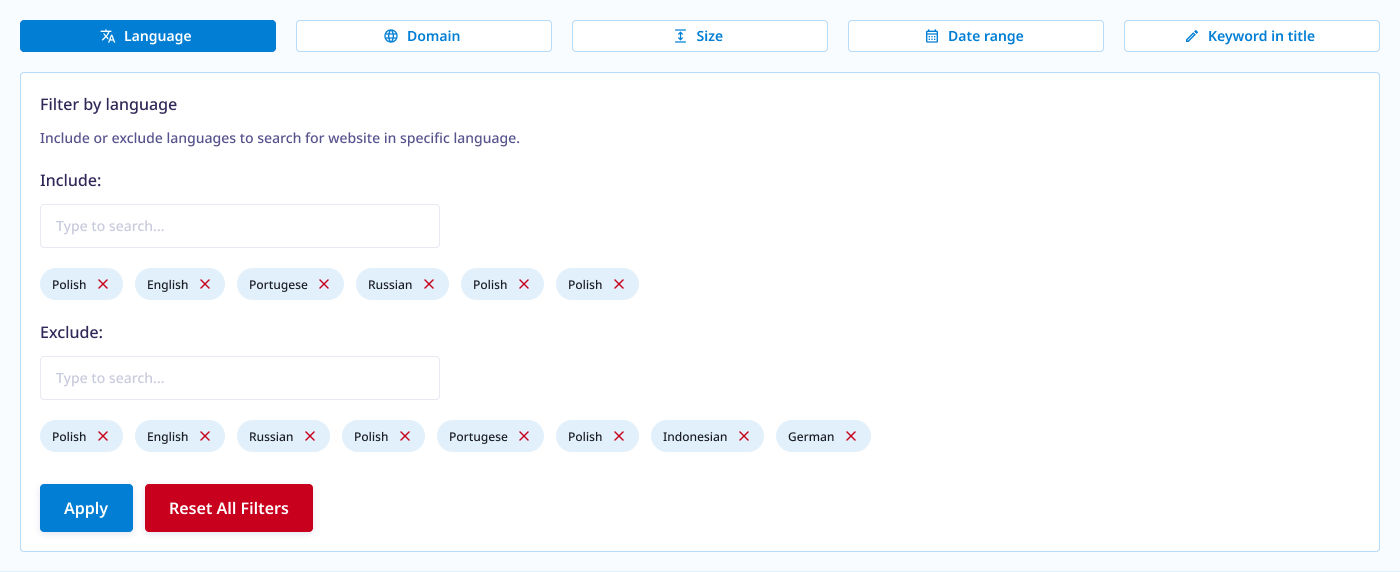
Filtering by language allows you to include or exclude any page language. For example, including English shows only pages in the English language.
How to use? Start typing a language to find it, and choose a language from the list to add it. You can include and exclude multiple languages.
Filter by domain
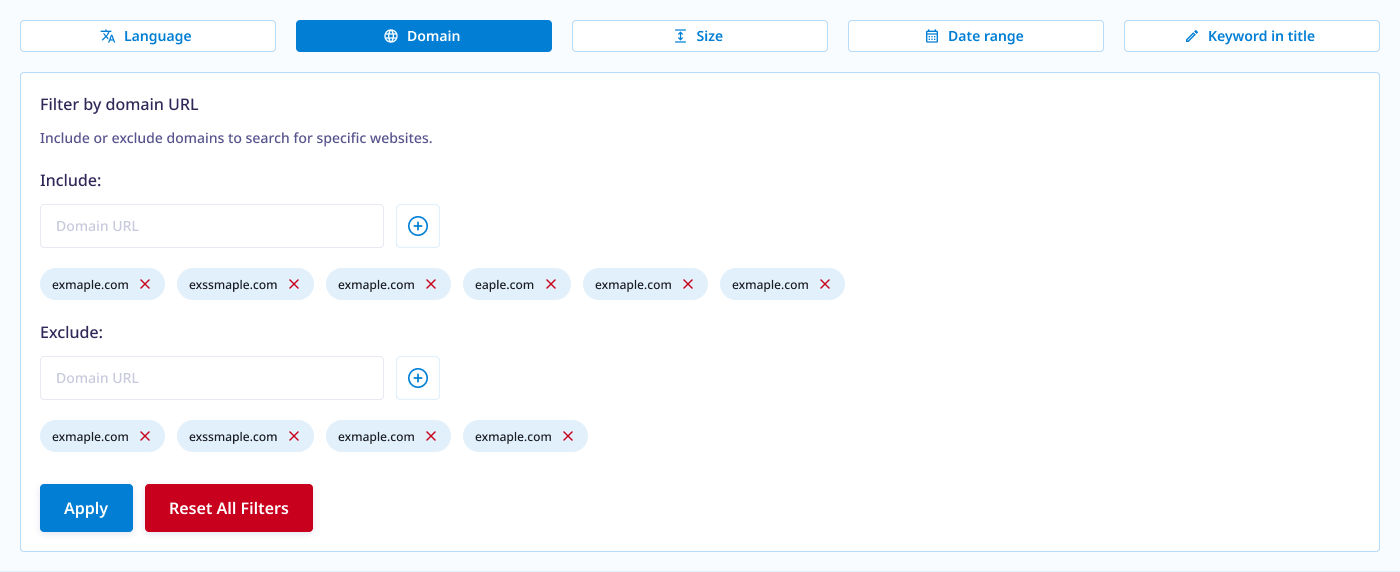
Include/exclude any domains. Including a domain makes the system search only on that domain. Excluding a domain makes the system search on all domains but the one excluded.
How to use? Type a domain in any format (example, example.com, or https://example.com). Click on the plus icon to add it, or click Enter on your keyboard.
Filter by date
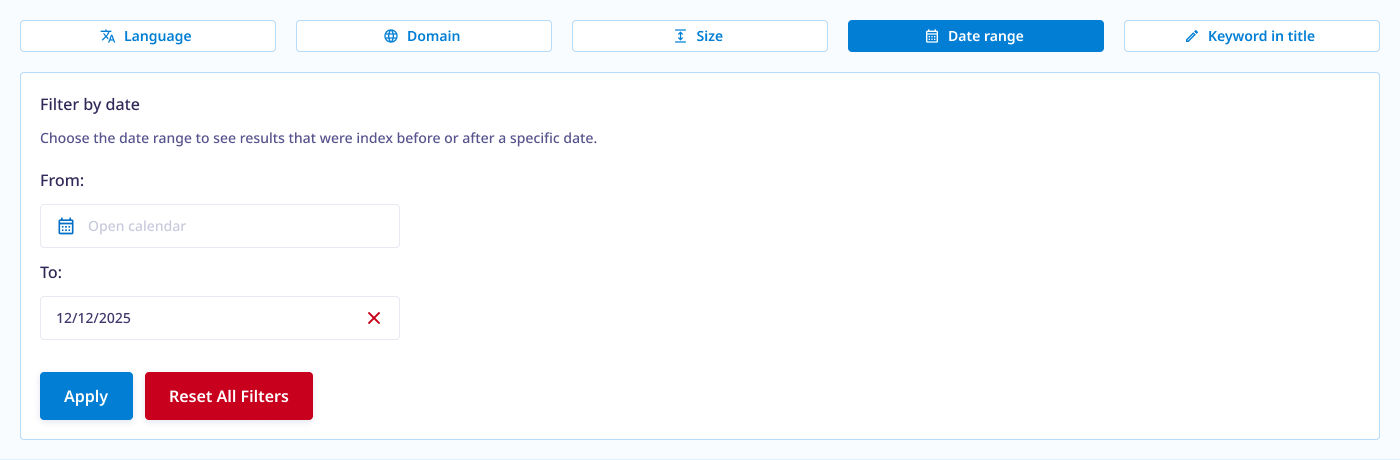
Choose the starting and ending dates to search for images indexed in specific time periods. It works for the time of indexing, not the time when the image was posted.
How to use? Click on the calendar icon. That will open the web calendar. Choose a date to enter. You can pick only the starting date, only the ending date, or both.
Filter by size
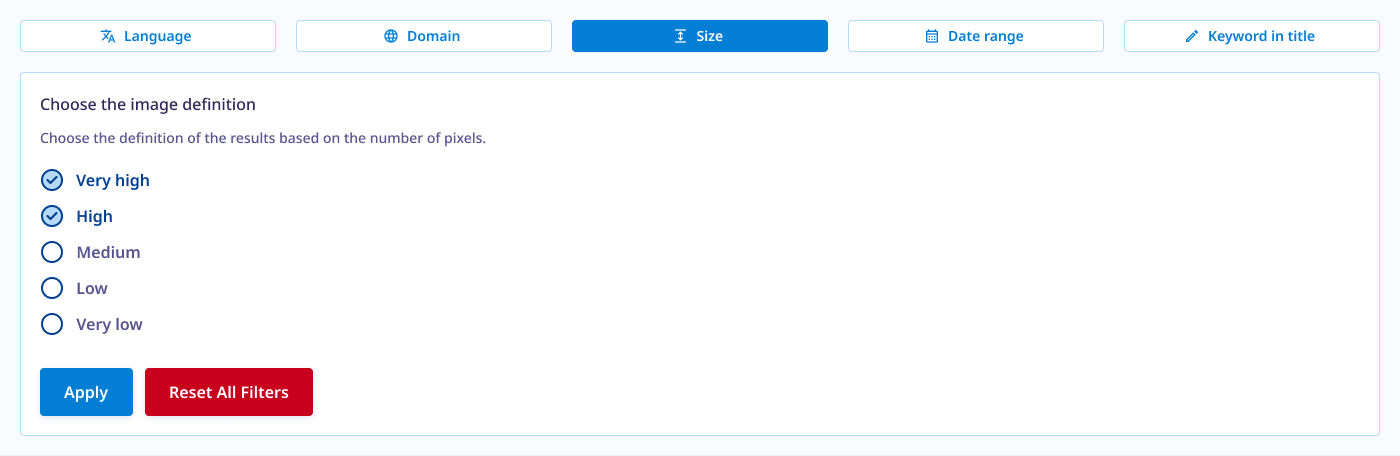
Choose the definition of the image - from very high to very low - to find images of higher or lower quality.
How to use? Check a checkbox next to a definition name to choose. You can check multiple fields at once.
Filter by a keyword
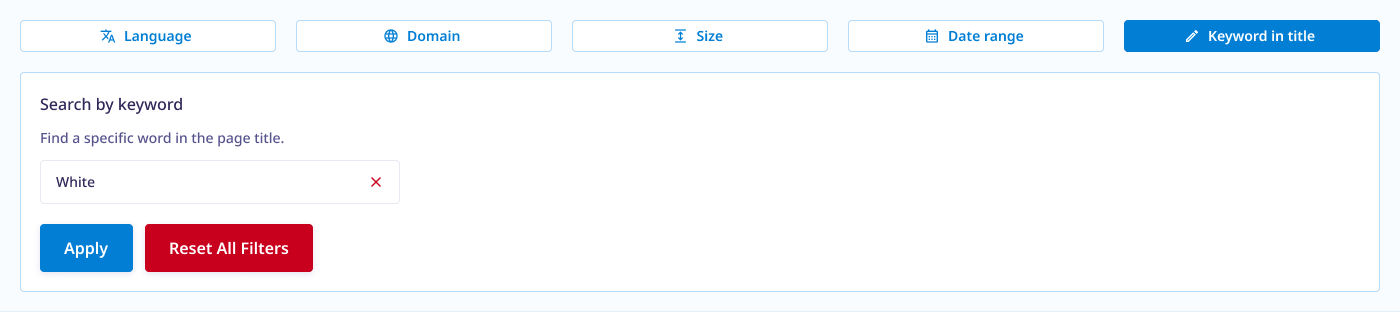
Write a keyword to find websites with that keyword in the title.
How to use? Write a keyword and confirm with Enter. Only one keyword is allowed.
Research Mode & Advanced Filters - Summing Up
If you want to get access to the Research Mode and Advanced Filters, get the Professional Subscription Plan. With Professional, you can make unlimited Research Mode searches, and use Advanced Filters in the Research Mode.

Author
Kinga Jasinska
Marketing Specialist
Continue reading
![TOP 10 Reverse Image Search Tools [2026]](https://img.lenso.ai/blog/top-reverse-image-search-tools?updatedAt=1738759682322&tr=w-768,h-auto)
News
TOP 10 Reverse Image Search Tools [2026]
Check out the ultimate list of the best reverse image search tools in 2026! Find the perfect image search engine that allows you to search for similar images or dive deeper with face search, duplicate and location finders.

News
Set up Notifications for Your Face Online | Lenso.ai Alerts
Wondering if your face is being shared online without your knowledge? Thanks to Alerts on lenso.ai, you can set up notifications for your face. This way, you will never miss a photo that’s been shared on the internet. Learn how lenso.ai helps you protect your image online with free Alerts and email notifications!
News
Best PimEyes Alternatives & Competitors for reverse face search in 2026
Looking for an accurate facial recognition tool that's not the popular one? Discover and try best PimEyes alternatives and competitors in 2026.